Let friends on your Wi-Fi join
Share your home-network address and get past the Windows firewall prompt that blocks people.

Devices on the same home network can reach each other directly, so this is the easy case. Friends in other houses need more, and a tunnel covers that.
Share the address
Open the server's Network tab. It shows the address for your home network, and you can copy it. It looks something like 192.168.1.23. Your friend types it into Minecraft under Multiplayer, Add Server.
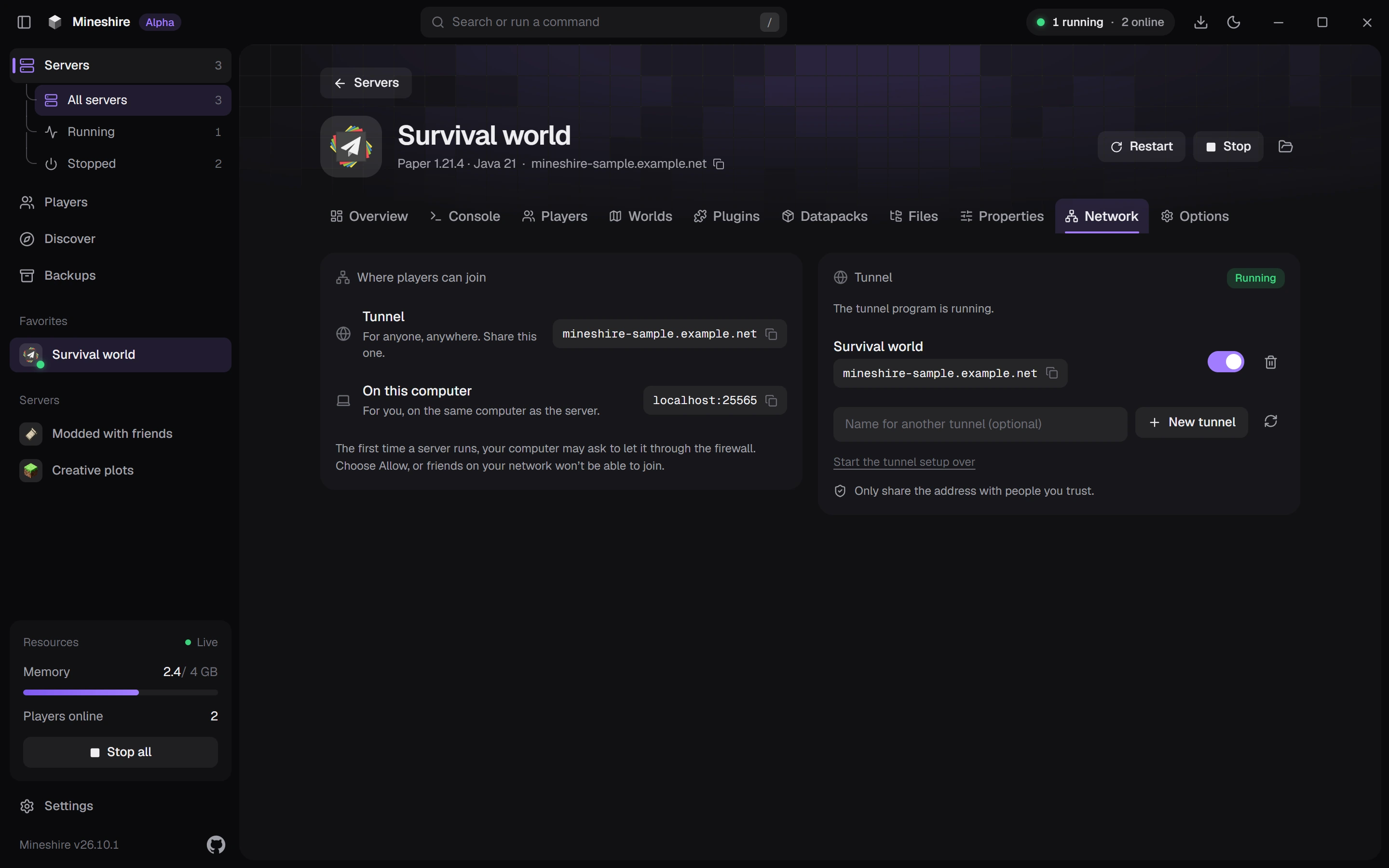
The server has to be running while they connect.
Finding the address by hand
The Network tab shows it for you. If you ever need it yourself, run ipconfig in a command window and read the IPv4 Address line under your active connection. It looks like 192.168.1.23 or 10.0.0.12.
If it times out
Check the firewall first. The first time Java starts a server on Windows, it asks whether it may use the network. Lots of people hit Cancel without reading, and then Windows blocks everyone.
Open the Windows firewall settings, allow Java on private networks, and try again.
Still nothing?
Work from the inside out, and change one thing at a time.
- Join from the same computer with
localhost. - Join with the home-network address from another device at home.
- Only after that, think about people outside your house.
Why can I join but my friend can't?
You're on the inside of your network and they aren't. The path from the internet to your PC is closed, so what's missing is a tunnel or port forwarding. Your friend isn't doing anything wrong, and neither is the server.
Still stuck?
The Discord is the quickest way to reach us.