Change a server's settings
Where the server.properties form, the memory setting and the other options live.

There are two sets of settings here, and mixing them up is easy.
Properties: the game's own settings
The Properties tab shows server.properties as a form with toggles, sliders and dropdowns. Every line has a short note in plain words, which saves you a trip to the wiki.
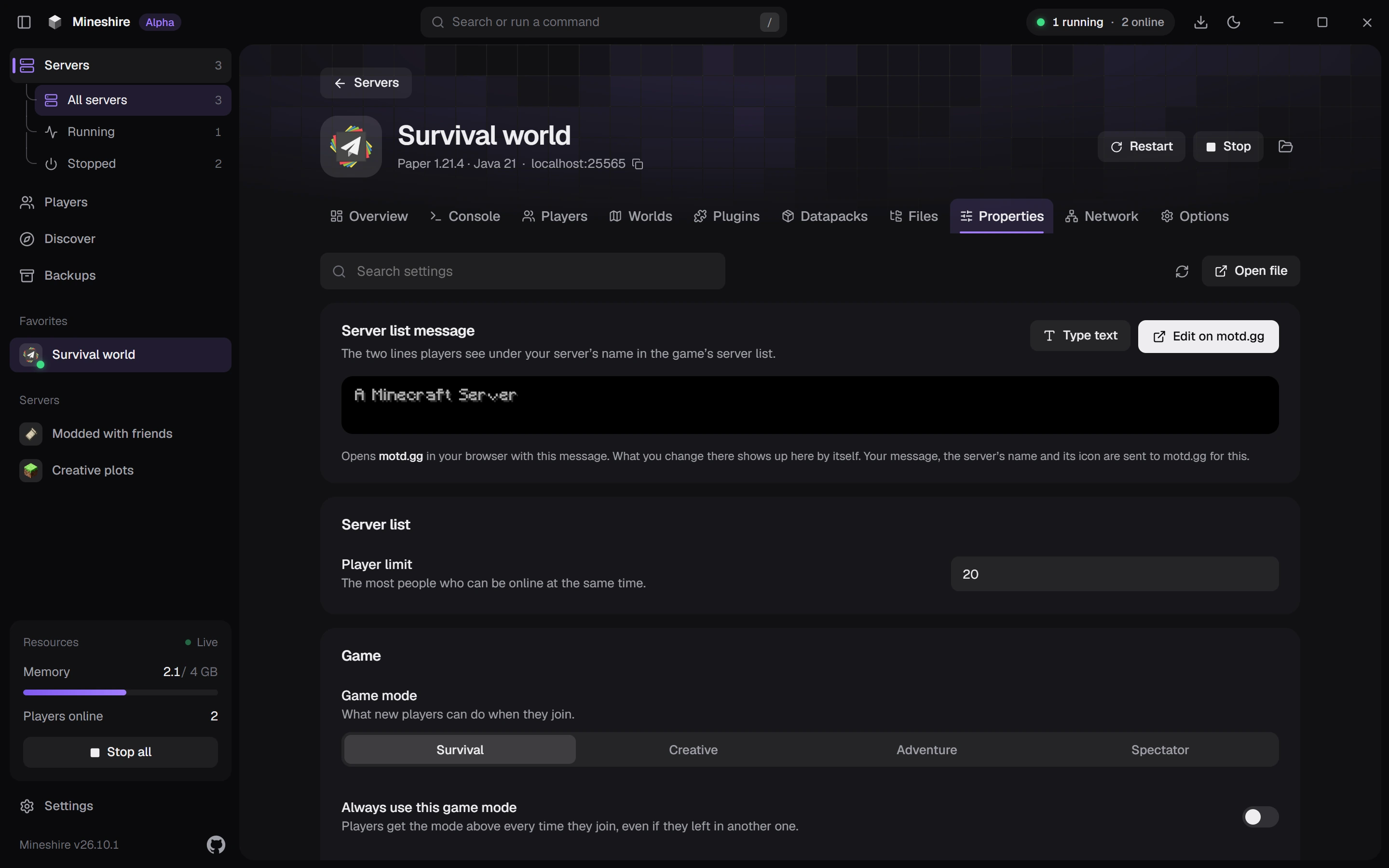
- The search box finds a setting by name or by what it does.
- Settings Mineshire doesn't know about sit under Other settings.
- Save keeps your changes and Discard drops them. Comments and the order of the file stay exactly as they were.
Minecraft only reads this file when the server starts, so restart the server to apply a change.
Prefer the raw file? Edit it directly in the Files tab. The server.properties guide on the blog covers the settings people ask about most.
Options: Mineshire's own settings
The Options tab holds what Mineshire manages:
- The server's name and icon.
- How much memory it gets.
- Restart if it crashes. See Restart a server after a crash.
- Opening the server's folder.
- Deleting the server.
About memory
Mineshire warns you when a server gets more than half of your computer's memory, and it won't allow more than 75%. Windows and your own game need the rest. Not sure what to pick? The blog post on how much RAM a server needs helps.
More isn't automatically better. Java cleans up unused memory in bursts, and with a huge amount to sweep each burst takes longer, which you feel as a brief freeze. Starving the server looks different: constant lag, "Can't keep up!" in the console, or a crash with an OutOfMemoryError.
The memory graph tells you what to do. Keep it open during a play session. When the used line hugs your limit, raise the limit. When it idles around a third of it, lower the limit and let your PC have the rest.
Still stuck?
The Discord is the quickest way to reach us.