Import a server you already have
Point Mineshire at a server folder or a zip file and it fills in what it can find.

Already running a server somewhere else? You don't have to start over. Mineshire can take it in as it is.
Import it
- On the Servers page, press Import. If you have no servers yet, the same button sits in the empty state.
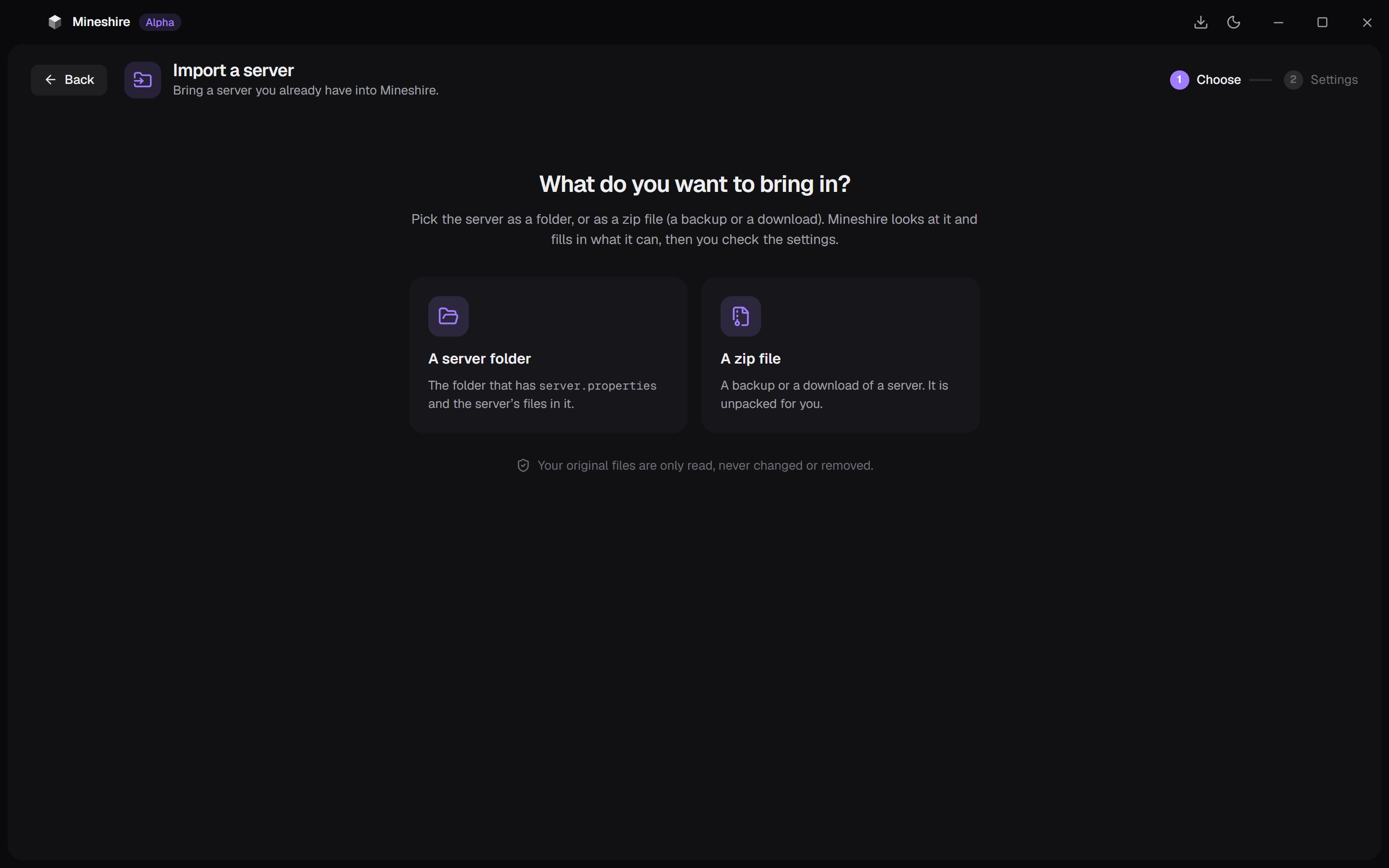
- Pick the server's folder, or a
.zipof it. A backup or a plain download both work. - Look over what Mineshire found, answer anything it couldn't work out, and finish.
What it reads
Mineshire goes through the files and picks out the settings it understands, like the port, the player limit and the Minecraft version. Whatever it can't tell, it asks you.
Your original files are only read. They're never changed or removed. A zip gets unpacked into a temporary spot first, so the zip stays untouched as well.
After it's in
Start the server and watch the console while it loads. The first error is nearly always the useful one, and it often names a plugin or mod that was built for another version. Join it yourself and walk around before you tell anyone it's back. If the port or version looks different from what you expected, you can change both later, see Change a server's settings.
Starting fresh instead?
You can add a world, plugins, mods or data packs while you create a new server. See Create your first server.
Still stuck?
The Discord is the quickest way to reach us.