Create your first server
Pick the software and a version, and Mineshire fetches Java and the server files for you.

It takes a few clicks. Mineshire handles the downloading and setup that people normally do by hand.
Create it
- Open Mineshire and press Create server.
- Choose the server software. There are 13 kinds, and each one tells you what it runs.
- Pick a Minecraft version.
- Fill in the basics, like a name, and press Create.
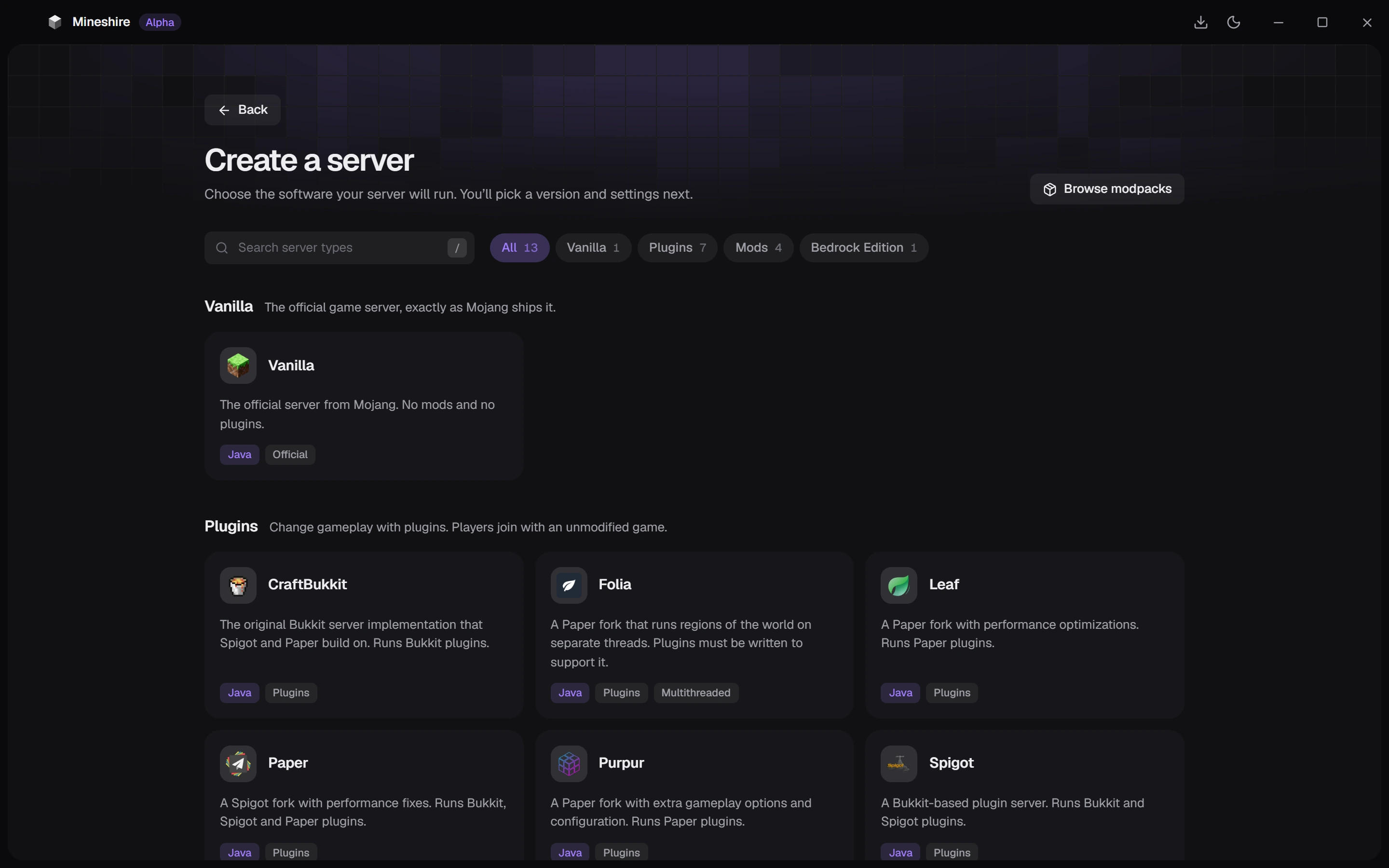
Behind the scenes Mineshire grabs the right Java and the server files, compares them with the maker's checksum when there is one, and writes the config. Progress shows on screen the whole time.
Start it and join
Hit Start and give it a minute. Once the console prints "Done", launch Minecraft, go to Multiplayer, choose Add Server and type localhost. That address only works on the PC hosting the server, so friends need something else.
Changed the port? Put it after a colon, like localhost:25566.
How much memory?
Most people never need to touch it. A vanilla or Paper server for you and a few friends does fine on 2 to 3 GB, and a big modpack wants a lot more. Giving a server too much can backfire, so Mineshire warns you above half of your computer's memory and won't allow more than 75%. The settings article has the rest.
If it won't start
Open the Console and scroll up until the red text starts. The first error is the real one, and whatever follows is mostly the mess it left behind. Read a server error message covers the common ones.
Which software should I pick?
It depends on what you want to add later, since plugin servers and mod servers aren't the same thing. The blog has a comparison of server software and a post on plugins versus mods.
What next
- Friends on your Wi-Fi can use your home-network address: Let friends on your Wi-Fi join.
- Everyone else needs a tunnel: Make a tunnel.
- Decide who gets in: Whitelist and operators.
Still stuck?
The Discord is the quickest way to reach us.