Change the message under your server's name
Write the two lines players see in the game's server list, with colours, and what is sent to motd.gg when you use it.

When someone adds your server in Minecraft, two lines of text sit under its name in the server list. That's the message of the day, or MOTD. It's the first thing a friend reads about your server, so it's worth a minute.
Where to find it
Open the server's Properties tab. The Server list message card sits at the top, above the other settings, with a preview that looks the way the game draws it. The setup page for a new Java server has the same card.
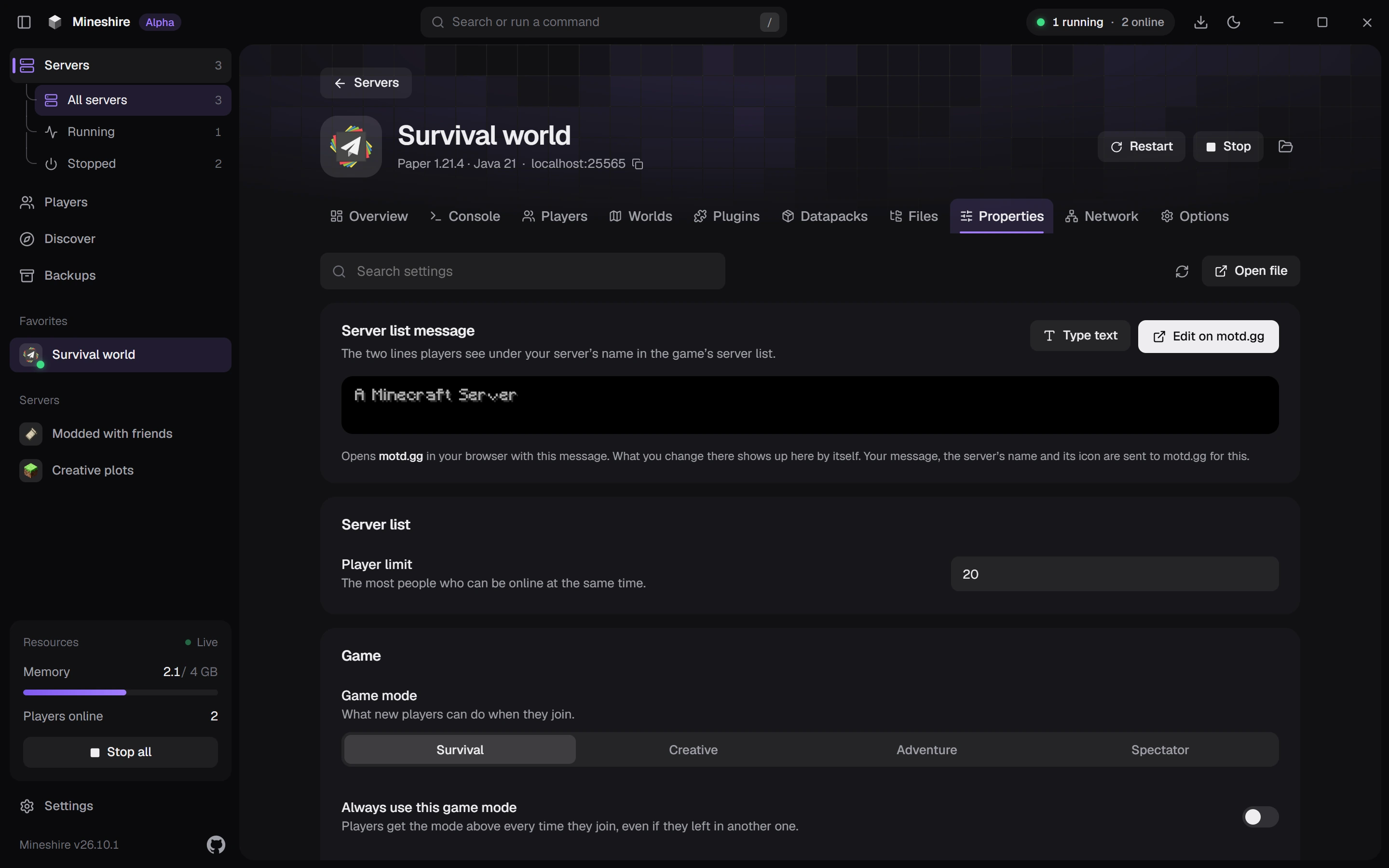
Type it yourself
Press Type text and write into the box. The message has two lines, and the preview updates as you type.
For colours and styles, type the § sign followed by a letter or number:
§ais green and§cis red.§lis bold.§rclears everything and goes back to plain text.
So §aWelcome §lhome shows "Welcome" in green and "home" in bold green.
Design it on motd.gg
Press Edit on motd.gg if you'd rather click than type codes. Your browser opens motd.gg with the current message in it. Whatever you change there shows up in Mineshire by itself, and the card says Updated from motd.gg when it has arrived. Press Stop watching when you're done, or Open motd.gg again if you closed the tab too soon.
Save it
Changes on the card aren't live yet. Press Save changes in the bar at the bottom of the tab. A running server only reads the message when it starts, so restart it for players to see the new text.
Next to the message, the Server list section has the Player limit. It's the most people who can be online at the same time.
Still stuck?
The Discord is the quickest way to reach us.