Browse and edit a server's files
Open, search, rename and edit files without leaving Mineshire, and why some edits wait for a restart.

Most things you'd want to change already have a proper screen in Mineshire. Then there's the odd one out, say a plugin's config file or an old log you want to read. That's what the Files tab is for. Whatever sits in the server's folder on your disk, you'll see here.
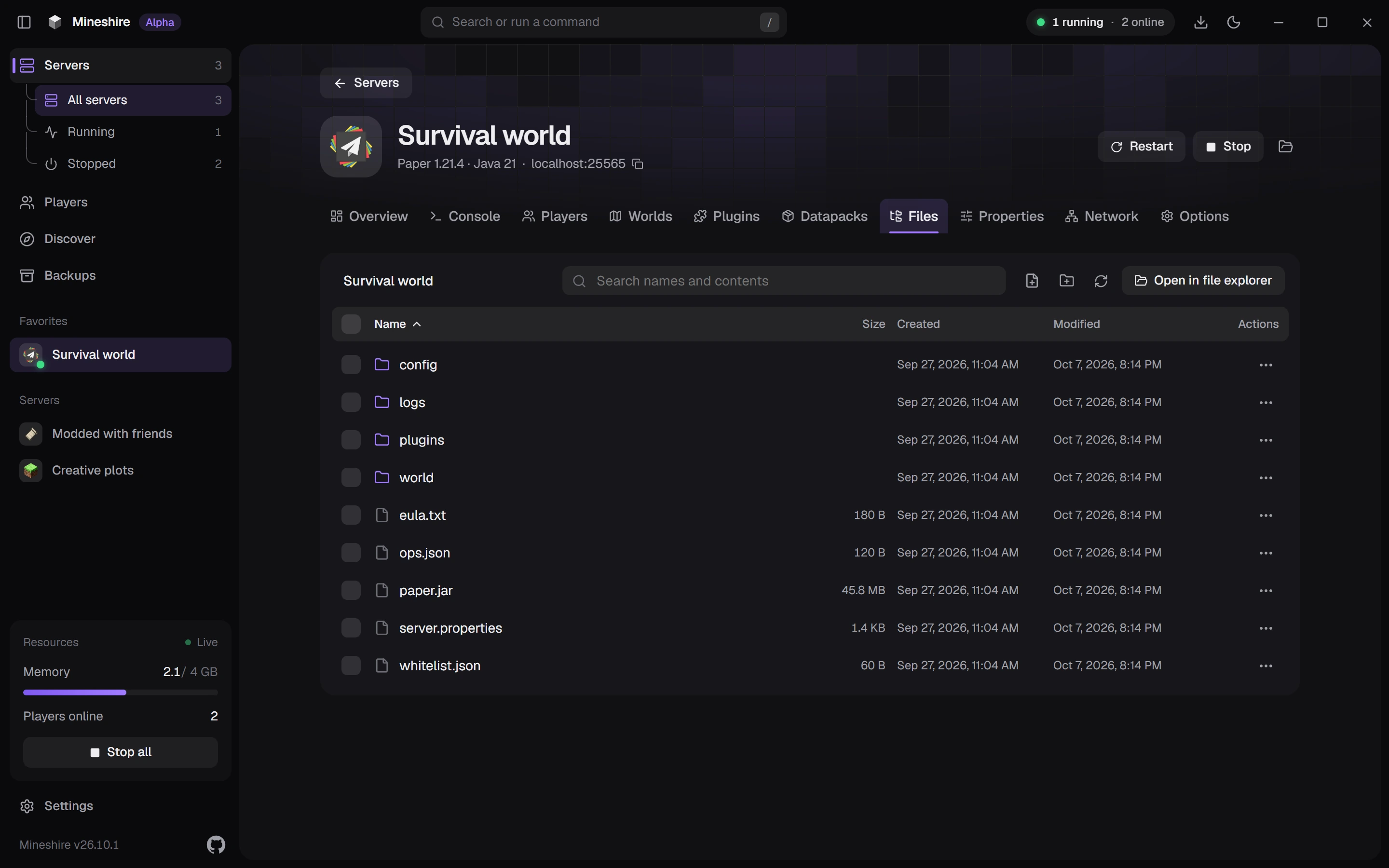
Find your way around
A click on a folder takes you inside, and the path above the list gets longer. Every part of that path is a button, which is the quickest way back up. The column headings Name, Size, Created and Modified sort the list when you press them, and Refresh is there for the times a file changed outside Mineshire while you were looking.
Need to drag a file in from somewhere else? Open in file explorer shows the same folder in your system's file manager.
Search
The search box looks at file names and also inside the files. Try a player's name or a setting. You get two lists: files whose names match, and lines inside files, each with its line number and folder. Press a result to open it. Past 200 matches Mineshire stops and asks you to narrow things down. Esc clears the search.
Edit a file
Open a text file and it lands in the editor, where you change what you need and press Save. A small dot next to the name tells you that something is still unsaved, and closing the editor at that point makes Mineshire ask if you really want to throw the changes away.
Pictures open in a viewer instead. Jar and zip files, world data and other things that aren't text can't go into the editor, and you get a short message saying so. A few files are Mineshire's own, and those stay closed too.
Add, rename and delete
- New file and New folder in the toolbar add a row where you type the name. Something like
whitelist.txtfits the hint in the box. - The three dots at the end of a row hold Open, Rename and Delete.
- Tick the boxes in front of several rows and a bar shows up. Zip packs the picked files into a single archive in the same folder, Copy names copies their names, and Delete removes them.
Prefer a form?
The popular files have a friendlier home. server.properties is the Properties tab, covered in Change a server's settings, and Whitelist and operators handles the player lists.
Still stuck?
The Discord is the quickest way to reach us.